
All posts
How to import your Apple Notes workout log into BodyBuddy
Share a workout note from Apple Notes to BodyBuddy and every session is filed on the day it happened. Steps, pictures, how dates are read, and fixes.
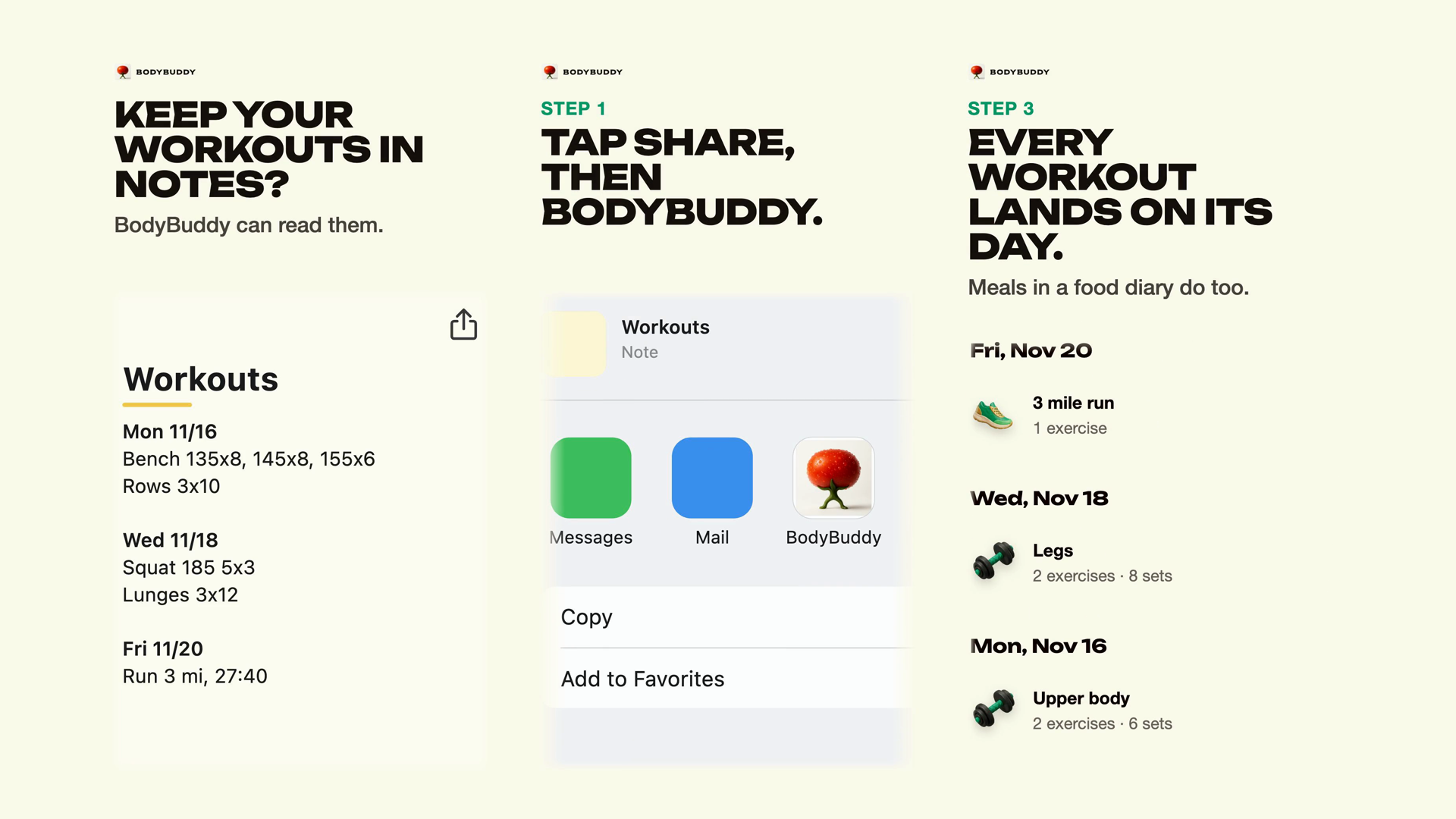
In short: open your workout note in Apple Notes, tap Share, check that the menu under the note's title says Send Copy, and tap BodyBuddy. BodyBuddy reads the note and files every workout on the day it happened. A note that holds three months of sessions turns into three months of logged workouts.
A lot of people track their lifting in Apple Notes. It opens fast and it takes whatever shorthand you type. After a year, though, all of those sessions sit in one long note, and nothing counts them or shows you what you did on a given day last month.
BodyBuddy can read that note. You share it from Notes, and each session lands in your BodyBuddy history on its own day, with its exercises and sets. Your note stays where it is, and you can keep writing in it the way you always have.
What you need before you start
- The BodyBuddy app on your iPhone. Sign in, and update to the latest version from the App Store.
- A note with dates in it. BodyBuddy files each workout on the day it happened, so every session needs a date it can read.
- A minute or two. A short note is read in seconds. A long one can take a few minutes.
Import a workout note from Apple Notes
- Open the note in Apple Notes.
- Tap the Share button. It is the square with an arrow pointing up.
- Look at the small menu under the note's title, at the top of the share menu. It needs to say Send Copy. If it says Collaborate, tap it and choose Send Copy. On iOS 27 the two choices are named Send a Copy and Share a Link.
- Tap BodyBuddy in the row of apps.
- BodyBuddy opens and shows Importing… with Reading your note under it.
- When it says Complete!, the list of what it filed opens.

The first time, add BodyBuddy to the row
BodyBuddy may not be in the row of apps the first time you share. Scroll to the end of the row and tap More. Tap Edit, tap the green plus next to BodyBuddy, then tap Done. BodyBuddy stays in the row from then on.
While BodyBuddy reads the note
The icons keep turning while BodyBuddy works. If the note is long, the screen tells you it can take a few minutes and offers Open the record now. You can wait, or you can tap it and leave. BodyBuddy keeps reading either way, and the workouts appear on their days when it is done.

What BodyBuddy files from your note
The page that opens after the import shows how many workouts were filed, the dates the note covers, and the workouts grouped by day with the newest day first. Tap a workout to see its exercises and sets.

What is in your note | What BodyBuddy does with it |
A day with several exercises | Files one workout for that day with every exercise in it. |
Weights, sets, reps, distances and times | Keeps them the way you wrote them. |
A heading such as "Push day" or "Legs" | Uses it as the workout's name. A day with no heading gets a short name such as "Upper body" or "3 mile run". |
A duration, such as "45 min" | Saves it. BodyBuddy leaves the duration empty when the note does not state one. |
A meal | Files it as a meal on its day. Calories and protein are saved only when the note states them. |
A day with no date BodyBuddy can work out | Leaves it out. |
A note with only one workout in it skips the list. BodyBuddy opens that workout straight away.
How BodyBuddy reads your dates
Most workout notes use short dates, so it helps to know how each kind is read.
What you wrote | The day it lands on |
A full date (11/16/2026 or Nov 16, 2026) | That day. |
A month and day with no year (11/16 or Nov 16) | The most recent Nov 16 that is today or earlier. |
"Yesterday" or "last Monday" | Counted back from the day you import. |
Only a weekday (Wed) | The same week as the entries around it. |
A date in the future | Not filed. |
No date at all | Not filed. BodyBuddy never puts an undated workout on today as a guess. |
The second row matters for an old note. A session marked 11/16 from two years ago is read as this year's Nov 16 unless the year is written down. Add the year to older entries before you import.
Notes that import well
You do not need to reformat your note. This is the note from the pictures above, and it imports as three workouts:
Workouts

Mon 11/16
Bench 135x8, 145x8, 155x6
Rows 3x10

Wed 11/18
Squat 185 5x3
Lunges 3x12

Fri 11/20
Run 3 mi, 27:40
A few habits make a long note import cleanly.
- Put a date on every session. One date line above the day's exercises is enough.
- Leave a blank line between days. BodyBuddy reads a long note in pieces and splits it at blank lines, so a blank line keeps each day whole.
- Add the year to older entries. A date with no year is read as the most recent one.
- Keep your shorthand. "135x8", "3x10" and "3 mi, 27:40" all read fine.
If you are starting a new note, our Apple Notes workout template has a few layouts you can copy.
Other notes you can share
The same Share button works for more than a lifting log.
- A food diary. Each meal is filed on its day, the same way a workout is.
- A plan you wrote. A note that describes what you intend to do, such as a four week program, opens as a plan to follow. Nothing in it is logged as done.
- A video or a web page. Sharing a workout video or a page with a routine also makes a plan. Our guide on importing a plan into BodyBuddy covers those.
BodyBuddy reads a note as one kind of thing, either a log of what you did or a plan to follow. If your note holds both, split it into two notes and share each one.
Text the note instead
You can also paste the note into a text to BodyBuddy, and it files the workouts the same way.
- In Apple Notes, tap and hold the text, choose Select All, then Copy.
- Open your thread with BodyBuddy in Messages.
- Paste the note and send it.

How to undo an import
The page that lists what was filed has a three dots button at the top right. Tap it and choose Remove everything from this import, then tap Remove. Every workout and meal from that note comes off your record. Your note in Apple Notes is not touched.
That button lives on the page that opens right after the import, so read through the list before you leave it. If you spot a problem later, email support@bodybuddy.app and we will help.
If something goes wrong
What you see | What to try |
BodyBuddy is not in the row of apps | Scroll to the end of the row, tap More, then Edit, and add BodyBuddy. If it is not in that list either, update the app. |
BodyBuddy is missing for one note only | That note may hold a photo, a scan or a drawing. BodyBuddy takes typed text. Copy the text into a new note and share that one, or paste it into a text to BodyBuddy. |
"Couldn't read that link" | The share menu was most likely set to Collaborate (or Share a Link), so your phone sent a link to the note. Share again with Send Copy. |
"Couldn't read that note" | Share the note again, or paste it into a text to BodyBuddy. |
"Nothing to import" | BodyBuddy did not receive any text. Check that the note has typed text in it and share again. |
Fewer workouts than you expected | Sessions with no date are left out, and so are dates in the future. Remove the import, add the missing dates to the note, and share it again. |
Workouts landed in the wrong year | A date with no year is read as the most recent one. Remove the import, add the year to the older entries, and share again. |
The note opened as a plan | BodyBuddy read it as something you intend to do. Put a date on each session so it reads as a log, then share again. |
The same workouts appear twice | The note was shared twice. On the page that opens after the second import, remove that import. |
Common questions
Does importing change my note?
No. BodyBuddy receives a copy of the text. The note in Apple Notes stays exactly as it was.
Do I share the note again after every workout?
No. BodyBuddy does not watch the note, and a second share files everything in it again, including the sessions that were already filed. Import your history once. After that, text BodyBuddy what you did, or share a new note that holds only the new sessions.
How far back can a note go?
As far back as its dates go. A longer note takes longer to read, and entries older than a year need the year written on them.
Does it work with other notes apps?
Any app whose share menu sends plain text works the same way. If yours does not, copy the text and paste it into a text to BodyBuddy.
Is there a video of this?
Yes. In the app, open Settings, then Help, then Import from Apple Notes. It runs 26 seconds.
Does this cost extra?
No. It is part of BodyBuddy.
Get help
If an import looks wrong, email support@bodybuddy.app. Tell us roughly what the note looked like and what BodyBuddy filed, and we will sort it out.
Sources
- Share and collaborate on notes, iPhone User Guide, Apple Support.
- If you can't collaborate in the Notes app, Apple Support.
Menu names in Apple Notes change between iOS versions. If a step here does not match your phone, Apple's pages above have the current names.
If you are new here, BodyBuddy is a coach that texts you every day and follows up on what you said you would do.
Related BodyBuddy guides
- Apple Notes Workout Template: Free Copy-Paste Workout Log
- Workout Journal: Free Templates for Any Workout
- How to Follow a Personal Trainer Workout Plan Between Sessions
- How to Import a Doctor, PT, Dietitian, or Workout Plan Into the BodyBuddy App
- Best Apps to Import Your Own Workout Plan and Stick to It (2026)
Everyone gives you a plan.BodyBuddy texts you until it happens.
BodyBuddy keeps you on track—from meals to doctor's appointments and everything in between.