Health|August 10, 2026|Francis

After-Visit Summary Checklist: Turn Doctor Instructions Into Daily Follow-Through

Sort an after-visit summary into actions, reference notes, and questions, then use the BodyBuddy app for daily text-message follow-through.

After-Visit Summary Checklist: Turn Doctor Instructions Into Daily Follow-Through

Use this guide when the appointment is over and you already have a written after-visit summary (AVS)—sometimes called post-visit instructions—from a clinician or patient portal. This is a patient-facing workflow: separate the few things that require follow-through from results, education, contact details, and other material that should remain available for reference. The BodyBuddy app creates a working follow-through layer; it does not replace the original document or your medical record.
If your appointment has not happened yet and you want to capture the conversation with everyone’s permission, read Turn Doctor’s Appointments Into Daily Coaching. This article covers the other path: importing the document you received afterward.
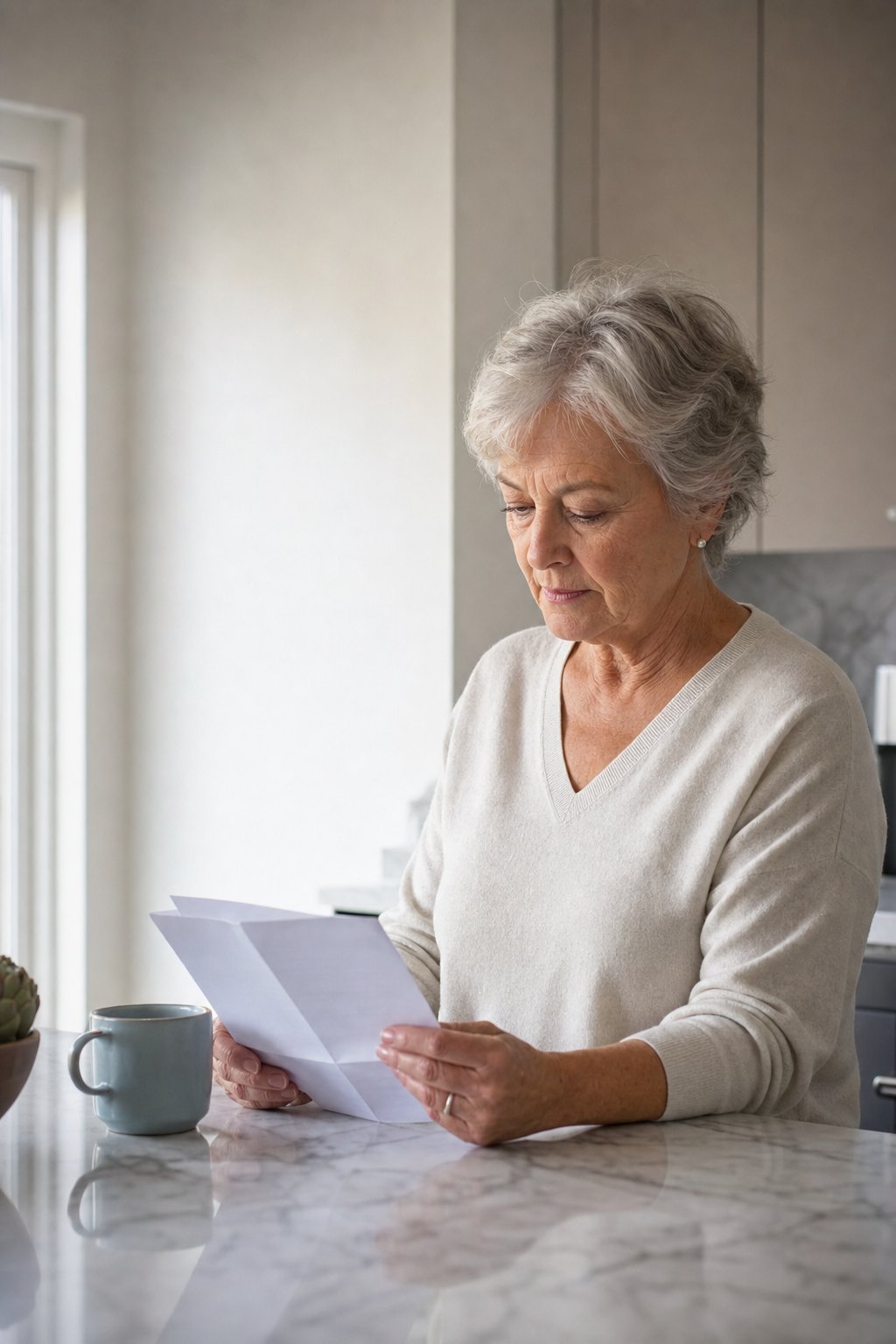
A person reviewing an after-visit summary and preparing a simple checklist. Editorial image, not app UI.

Start with the source, not a blank checklist

Keep the original PDF, portal document, or printout open. Read it once and mark each useful line as one of four types:
  • Action: something the summary explicitly asks you to do, such as schedule a follow-up or complete a named task.
  • Reference: a result, diagnosis, medication list, education section, restriction, or precaution that needs to remain available but is not automatically a daily task.
  • Question: wording you do not understand, an apparent conflict, or a missing detail you need the clinic to clarify.
  • Administrative: phone numbers, billing information, portal instructions, or other logistics.
This prevents a common mistake: turning every line into a checkbox. A test result is not an action. A restriction can lose meaning when it is shortened. A medication instruction may require follow-through, but it should not be casually paraphrased into new wording.
The Agency for Healthcare Research and Quality advises patients to ask questions and call their clinician if instructions are unclear after they get home. MedlinePlus similarly recommends writing down new questions after a visit. An unresolved question belongs on a question list, not inside a guessed task.

Do a five-minute sorting pass

Before importing the document, pull out only what you can verify from the page:
  1. Circle explicit actions.
  1. Preserve dates, quantities, frequencies, restrictions, and conditions exactly as written.
  1. Put unclear instructions on a separate question list.
  1. Leave background information in the source.
  1. Note who gave the instruction when more than one professional is involved.
You are not rewriting the care plan. You are deciding what deserves attention today and what should remain attached as context.

Import the after-visit summary into the BodyBuddy app

Open Plans, tap Add a plan, and choose Import a file.
The Plans tab with Add a plan open, including Import a file and Paste a plan.
The Import a plan sheet offers:
  • Take a photo
  • Choose a photo
  • Choose a file
The Import a plan source picker with Take a photo, Choose a photo, and Choose a file.
Choose a clear photo for a single printed page. Use the PDF when you have a multipage summary. The BodyBuddy app accepts PDFs, CSV files, and XLS or XLSX spreadsheets through the file picker. If the instructions are already plain text in a portal message or email, go back and choose Paste a plan instead.
The BodyBuddy app may attempt bounded optical character recognition when a PDF has no usable text layer. OCR is currently limited to eligible scanned PDFs up to 8 pages and 10 MB. If it still cannot read the file, try a cleaner export or photograph the relevant single page.

Review the imported plan before relying on it

When processing finishes, the plan can include a plain-language overview, organized details from the document, notes, and proposed action items. The exact sections depend on what the source contains.
A current BodyBuddy app plan screen built from a fully synthetic after-visit example. The person, professional, date, and instructions shown are fictional.
Compare the result with the original and check:
  1. Overview: Does it describe the document without adding a conclusion?
  1. Details: Are names, dates, amounts, units, frequencies, restrictions, and conditional instructions intact?
  1. Action items: Is each item something the source actually asks you to do?
  1. Source: Can you still find the original wording when you need it?
Trackable actions from an imported plan normally arrive on your agenda by default. Switch off anything that is wrong, unclear, duplicated, included only for reference, or not something you want BodyBuddy following up on. If the imported plan says an existing action is complete, verify that change against the source before changing its switch. Most switches are reversible, but reversing a completion change can reopen a previously active item.
One synthetic follow-up is active; a reference-only item is switched off. The text-message handoff lets you discuss the verified plan with BodyBuddy.
The plan screen does not rewrite the extracted summary or action wording. Looks right records your assessment. Something’s off flags the result and opens recovery options; neither control reruns the import. If the source is correct but an active item’s frequency, review date, or notes need correction, text BodyBuddy with the exact change. That updates what your coach follows without rewriting the saved source. If an extracted action is inaccurate, switch it off. If the original instruction is unclear, contact the clinic rather than inventing a cleaner version.

A fictional example

Suppose a synthetic after-visit summary contains these lines:
Source text
Best role
Review check
Schedule a follow-up within two weeks
Action
Keep the two-week timing
Activity restrictions are listed in the attached handout
Reference
Keep the original restriction available; do not invent a shorter one
Imaging report is available in the portal
Reference
Do not turn a result into a recommendation
Call the clinic if the written instructions differ from what you remember
Action or question prompt
Preserve the condition and the clinic as the source
Only the first and fourth lines clearly support follow-through. The middle two still matter, but they do not need to become recurring habits.

Keep the coaching agenda smaller than the document

An after-visit summary may be several pages. Actions left on become part of BodyBuddy’s coaching context. They remain visible on the imported plan and can inform later text check-ins. They are ongoing areas for your coach to pay attention to—not a checklist that resets each morning, an exact-time reminder system, or a medication schedule.
A useful follow-through agenda might include:
  • one appointment to schedule;
  • one clearly assigned home action;
  • one question to send through the clinic’s normal channel; and
  • one date-sensitive follow-up.
Leave results, education, medication lists, and precautions in the plan and its source attachments unless the document explicitly gives you an action. BodyBuddy can then follow up by text about what happened without crowding the coaching context with reference material.
When BodyBuddy checks in by text, use plain status language: completed, partly completed, missed, waiting on the clinic, or blocked by something specific. “I called and left a message” is useful progress even when the appointment is not yet booked.

A two-minute evening text check-in

  1. Review the active actions from the visit.
  1. Record what actually happened.
  1. Note one obstacle, if there was one.
  1. Add any new question for the clinic.
  1. Confirm tomorrow’s actions still match the written summary.
You do not need to rewrite the appointment each night. Keep the original summary in its normal secure location. The imported plan is a working follow-through layer, not your medical record or the only copy of the source.

Keep new documents connected without silently changing the plan

An active imported plan has an Attachments section. You can add a photo or PDF later, and you can remove an individual attachment.
Adding an attachment does not regenerate the overview, structured details, or action items. If a new document materially changes the instructions, treat it as a new source: import it as a new plan, compare the two, and then archive the superseded plan if appropriate.
Archive moves a plan out of the active Plans list and retires its active agenda items while preserving the plan in the archive. Unarchiving restores the plan, but it does not automatically reactivate the old agenda items.
Delete permanently removes the plan, its stored source recording or document, attachments, linked action items and logged history, generated images, and sharing access. It cannot be undone.

Keep the clinical boundary clear

Use the clinic’s written instructions and the appropriate professional for medical decisions. The BodyBuddy app can organize a result and explain unfamiliar wording, and BodyBuddy, your coach, can use verified actions to help you follow through. Neither should decide what a result means for your care, choose between conflicting instructions, decide whether a symptom is urgent, or start, stop, or change a medication.
Preserve any stopping, contact, urgent-care, or emergency instructions exactly. When the summary conflicts with what you remember, contact the clinic or pharmacist. For urgent symptoms or emergencies, use the appropriate local emergency service rather than an app checklist.
After-visit summaries can contain names, diagnoses, medication details, account numbers, and contact information. Import only a document you have the right to use and remove unrelated information you do not want included. Imported documents leave your device for encrypted cloud storage and AI processing; BodyBuddy says appointment documents and transcripts are not used for model training. Review the BodyBuddy Privacy Policy before importing sensitive material.

Common questions

What is an after-visit summary?

An after-visit summary, often shortened to AVS, is the written document a clinic or patient portal provides after an appointment. It may include post-visit instructions, results, medication information, education, contact details, and follow-up steps.

Can I import a PDF from my patient portal?

Yes. Download the patient portal PDF to your device, then choose Plans → Add a plan → Import a file in the BodyBuddy app. Keep the portal copy as the authoritative source and review every extracted action before relying on it.

Should every line become an action item?

No. Keep clear actions active. Leave results, education, precautions, and background details available as reference unless the document explicitly assigns a task.

What if two professionals gave different instructions?

Keep the sources separate and bring the exact conflict back to the relevant professionals. Combining both into one polished checklist can hide who said what.

Can I add another page later?

Yes. Add a photo or PDF in Attachments while the plan is active. The attachment remains with the plan, but it does not currently regenerate the extracted overview or actions.

Is this the same as recording an appointment?

No. Recording captures a conversation with permission before creating a visit summary. This workflow begins with a written after-visit summary you already received.

What if an imported action is wrong?

Switch it off, compare it with the source, and ask the clinic about unclear original wording. Do not keep an easier version that changes the instruction.
Your next step is simple: open the original summary, mark the explicit actions, import it into the BodyBuddy app, and compare every active switch with the source. Keep only verified follow-through items active, then let BodyBuddy check in by text about what happened.

Put this into practice

Choose a useful next step

Want daily accountability?

BodyBuddy texts you every day.

Build a healthier relationship with food and movement, one text at a time.

or download the iOS app